


Next: 10. RGS Data Processing Up: XMM ABC Guide Previous: 8. EPIC-PN Data Processing Contents
The calibration of the MOS cameras in Timing mode is limited, so users
are urged not to use it for timing studies. Nonetheless, there are archived
observations that have MOS in Timing mode, so we will include here a chapter
on how to process them.
As always, we recommended that you keep all reprocessed data in its own
directory! SAS places output files in whichever directory it is in when a task
is called. Throughout this primer, it is assumed that the Pipleline Processed data are
in the PPS directory, the ODF data (with upper case file names, and uncompressed)
are in the directory ODF, the analysis is taking place in the PROC directory, and
the CCF data are in the directory CCF.
Various analysis procedures are demonstrated using the Mkn 841 dataset, ObsID 0070740101,
for which MOS1 was in Timing mode and MOS2 was in Imaging mode. We focus only on the
MOS1 observation.
The following procedures are applicable to all XMM-Newton datasets, so it is not
required that you use this particular dataset; any MOS Timing mode observation should
be sufficient.
We assume that the data was prepared and environment variables were set
according to §6. In the window where SAS was
initialized, in your “processing directory” PROC, run emchain or
emproc to produce calibrated photon event files for the MOS camera.
Note that the tasks will automatically detect what mode the data were taken
in. Emchain requires calling HEASoft's “ftools” first.
On the command line, just type:
| emproc |
or, alternatively,
| ftools
emchain |
By default, the tasks does not keep any intermediate files that were generated. Emproc designates its output event files with “Evts.ds”, so “*TimingEvts.ds” and “*ImagingEvts.ds” denote the timing and imaging event lists, respectively. In any case, you may want to name the new files something easy to type. For example, to make a soft link to the new event files, type:
| ln -s P0070740101M1S001TIEVLI0000.FIT m1_te.fits |
or
| ln -s 0201_0070740101_EMOS1_S001_TimingEvts.ds m1_te.fits |
as appropriate. If you are likely to want to extract a background spectrum for your source, you will also need to consider the imaging event file. Remember that whatever filtering is done on the timing event file must also be done on the image event file. We'll make a soft link for the imaging event file, too, depending on which pipeline script was run.
| ln -s P0070740101M1S001MIEVLI0000.FIT m1_ie.fits |
or
| ln -s 0201_0070740101_EMOS1_S001_ImagingEvts.ds m1_ie.fits |
Note that when MOS is in timing mode, we can't just view the timing event file in ds9; instead, we must make an image and view that. So, if we want to see what our timing data look like, we would type
evselect table=m1_te.fits imageset=m1_te_image.fits xcolumn=RAWX ycolumn=TIME \
 imagebinning=binSize ximagebinsize=1 yimagebinsize=1 imagebinning=binSize ximagebinsize=1 yimagebinsize=1
ds9 m1_te_image.fits & |
| table - input event file
imageset - output image name xcolumn - column with x-coordinates ycolumn - column with y-coordinates imagebinning - method of binning ximagebinsize - binning factor for x-axis yimagebinsize - binning factor for y-axis |
The filtering expression for the MOS in Timing mode is the same as for Imaging mode:
(PATTERN  12) && (PI in [200:12000]) && #XMMEA_EM 12) && (PI in [200:12000]) && #XMMEA_EM
|
The first expression will select good events with PATTERN in the 0 to 12 range.
Event patterns are discussed in §4.1, but to summarize here, it is
related to the number and pattern of the CCD pixels triggered for a given event. The PATTERN
assignments are: single pixel events: PATTERN == 0, double pixel events: PATTERN in [1:4],
triple and quadruple events: PATTERN in [5:12].
The second keyword in the expression, PI, selects the preferred pulse
height of the event; this should be between 200 and 12000 eV. This should
clean up the image significantly with most of the rest of the obvious contamination due
to low pulse height events. Setting the lower PI channel limit slightly higher (e.g.,
to 300 or 400 eV) will eliminate much of the rest.
Finally, the #XMMEA_EM filter provides
a canned screening set of FLAG values for the event. (The FLAG value provides a
bit encoding of various event conditions, e.g., near hot pixels or outside of the
field of view.) Setting FLAG == 0 in the selection expression provides the
most conservative screening criteria and usually isn't necessary for the MOS.
To filter the data, type
| evselect table=m1_te.fits filteredset=m1_te_filt.fits \
expression='(PATTERN 12) && (PI in [200:12000]) && #XMMEA_EM'
|
where
| table - input event table
expression - filtering expression filteredset - output file name |
and, if you are using the image event file,
| evselect table=m1_ie.fits filteredset=m1_ie_filt.fits \
expression='(PATTERN 12) && (PI in [200:12000]) && #XMMEA_EM'
|
where the parameter names are as indicated above.
Sometimes, it is necessary to use filters on time in addition to those
mentioned above due to soft proton background flaring, as discussed in
§4.2.
To determine if our observation is affected by background flaring, we can examine the high-energy, single-pattern event light curve. First, let’s prepare a directory to keep things organized:
| mkdir ltcrv
cd ltcrv ln -s ../m1_te_filt.fits |
For the time binning, we will set it to something reasonable (usually between 10 and 100 s, but a bit longer is useful for this faint source):
evselect table=m1_te_filt.fits rateset=m1_ltcrv.fits \
maketimecolumn=yes timebinsize=200 makeratecolumn=yes \
expression='(PI  10000) && (PATTERN == 0)' 10000) && (PATTERN == 0)'
|
where
| table - input event table
rateset - name of output light curve file maketimecolumn - control to create a time column timebinsize - time binning (seconds) makeratecolumn - control to create a count rate column, otherwise a count column will be created expression - filtering expression |
The output file m1_ltcrv.fits can be viewed by using the ftool fv. Remember to call ftools if you haven't already (there is no harm in calling it more than once).
| ftools
fv m1_ltcrv.fits & |
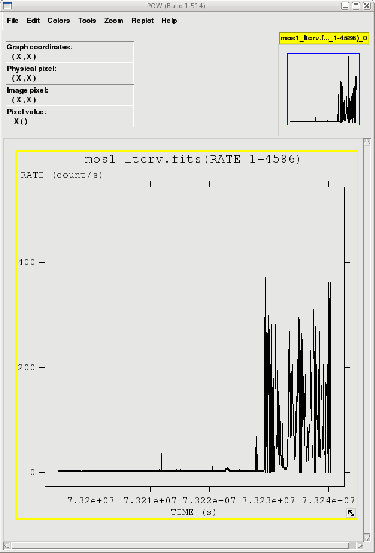
In the fv pop-up window, the RATE extension will be available in the second row (index 1, as numbering begins with 0). Select “PLOT” from this row, and select the column name and axis on which to plot it. The light curve is shown in Fig. 9.1. No flares are evident (indeed, there are very few counts at all!), so we will continue to the next section. However, if a dataset does contain flares, they should be removed in the same way as shown for EPIC Imaging mode data in §7.4.
The first step in extracting a spectrum from MOS Timing data is to make an image of the event file over the energy range we are interested in; for this example, we'll say we are interested in the full range, from 0.2-12 keV. If we had wanted a different energy range, it is easy to arrange by specifying it in the expression parameter as we saw above when filtering the data. But first, we will start with a new directory to keep everything organized.
| cd ..
mkdir epicspec cd epicspec ln -s ../m1_te_filt.fits ln -s ../m1_ie_filt.fits |
To make the image,
| evselect table=m1_te_filt.fits withimageset=yes imageset=m1_te_image.fits \
xcolumn=RAWX ycolumn=TIME imagebinning=binSize ximagebinsize=1 \
yimagebinsize=1
|
where the parameters are as described above, and
| imagebinning - method of binning
imageset - output image name xcolumn - column with x-coordinates ycolumn - column with y-coordinates ximagebinsize - binning factor for x-axis yimagebinsize - binning factor for y-axis |
The image can be displayed with ds9 and is shown in Fig. 9.2. The source is centered on RAWX=314; we will extract this and the 10 pixels on either side of it, keeping only the highest quality, single pattern events, (FLAG==0 && PATTERN==0):
| evselect table=m1_te_filt.fits withspectrumset=yes \
spectrumset=source_pi.fits energycolumn=PI spectralbinsize=5 \
withspecranges=yes specchannelmin=0 specchannelmax=11999 \
withfilteredset=yes filteredset=m1_te_filt_source.fits \
expression='(FLAG==0) && (PATTERN==0) && (RAWX in [304:324])'
|
where the keywords are the same as in §9.2, and
| energycolumn - energy column
spectrumset - name of output spectrum spectralbinsize - size of bin, in eV specchannelmin - minimum channel number specchannelmax - maximum channel number |
We can also extract a background spectrum. For this, we will use the imaging event list, since we want the background to be far away from the source, and only the centeral CCD is in timing mode. The MOS1 events in Imaging mode is shown in Figure 9.3, with the background spectrum extraction region overlayed. Once again, we will only keep the high quality events, but we'll change the restriction on the event pattern a bit. As can be seen in Figures 4.1 and 9.2, the single event pattern (PATTERN==0) in Timing mode corresponds to three patterns in Imaging mode: singles, and the two double patterns that are aligned with the pixel column, PATTERN==1 and PATTERN==3. We will therefore use those patterns when making the background spectrum.
evselect table=m1_ie_filt.fits withspectrumset=yes spectrumset=bkg_pi.fits \
energycolumn=PI spectralbinsize=5 withspecranges=yes specchannelmin=0 \
specchannelmax=11999 withfilteredset=yes filteredset=m1_filt_bkg.fits \
expression='(FLAG==0) && ((X,Y) in CIRCLE(36359.5,29884.5,2000)) && \
(PATTERN==0  PATTERN==1 PATTERN==3)' PATTERN==1 PATTERN==3)'
|
|
Next, we need to find the source and background region areas. (This process is identical to that
used for Imaging data.) This is done with the task backscale, which takes
into account any bad pixels or chip gaps, and writes the result into the
BACKSCAL keyword of the spectrum table.
To find the source and background extraction areas:
| backscale spectrumset=source_pi.fits badpixlocation=m1_te_filt.fits
backscale spectrumset=bkg_pi.fits badpixlocation=m1_ie_filt.fits |
where
| spectrumset - spectrum file
badpixlocation - event file containing the bad pixels |
Next, we need to reformat the detector response by making redistribution matrix files (RMFs) and ancillary response files (ARFs). Making the RMF and ARF for MOS data in Timing mode is exactly the same as in Imaging mode. For the source:
| rmfgen rmfset=source_rmf.fits spectrumset=source_pi.fits |
where
| rmfset - output file
spectrumset - spectrum file |
To make the ARF:
| arfgen arfset=source_arf.fits spectrumset=source_pi.fits \
withrmfset=yes rmfset=source_rmf.fits badpixlocation=m1_te_filt.fits
|
where
| arfset - output file
spectrumset - spectrum file withrmfset - use the RMF dataset to define the ARF energy grid? rmfset - RMF file badpixlocation - the file containing the bad pixel locations |
For the background, simply repeat these commands with the appropriate changes.
At this point, the spectrum is ready to be analyzed. This is discussed in §12.1, including how to rebin it using ftools. However, SAS also has a rebinning task, which is demonstrated in §7.11. The timing data can also be examined in Xronos; this is discussed in §13.
To aid in scripting, the data preparation commands from §6.1 and §6.2 and the commands used in this chapter are consolidated below.
| cd ODF
setenv SAS_ODF `pwd` ; setenv SAS_ODFPATH `pwd` cifbuild setenv SAS_CCF `pwd`/ccf.cif odfingest setenv SAS_ODF `pwd`/*SUM.SAS
cd ..
mkdir ltcrv
cd ..
|
![\includegraphics[scale=0.15]{epicmos_mkn841_ltcrv_hiE.eps}](img34.png)
![\includegraphics[scale=0.5]{epicmos_source_image.eps}](img35.png)
![\includegraphics[scale=0.15]{epicmos_bkg_image.eps}](img36.png)