fv Home fv Home
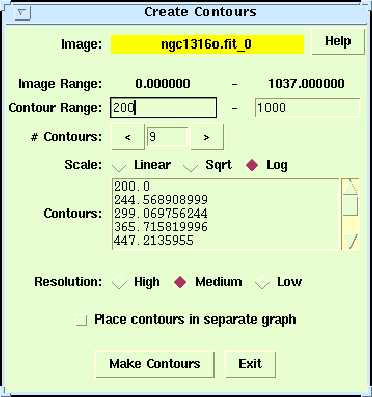
Next: Blinking Up: No Title Previous: Image Display Contour MapsThe contour plotting control panel (Figure 7) appears after clicking on the `Make Contour Map' option under the Tools menu. First set the desired range to be covered by the contours, the number of contours, and the log or linear contour spacing, then click on `Make contours' to draw the map. Adjust the range or the number of contours until you get the desired plot. By default the contours are drawn on top of the current image, but a check box is available on the control panel to force the contours to be drawn on a new graph. Note that you can zoom in on the image (as described above) to view the contours in more detail.
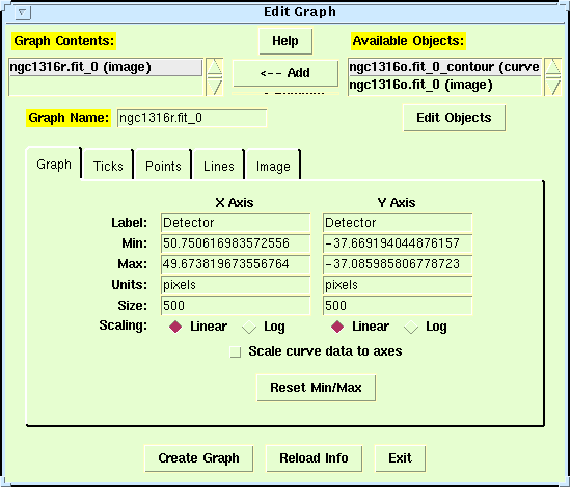
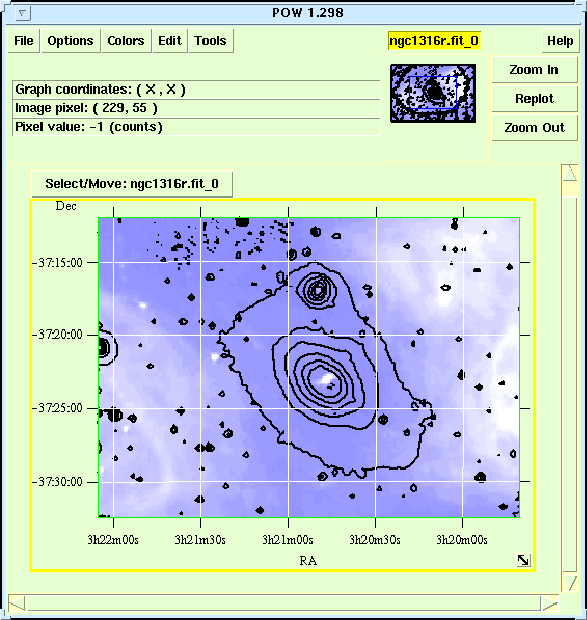
It is also possible to display a contour plot from one image on top of a different image. For example, now that we have the optical contour map, use the fv Desktop Manager window to open the file ngc1316r.fit (containing a radio image) and display it beside the optical image on the POW canvas. Make sure the radio image is highlighted with a yellow border as the current graph, then open the `Edit Graph' item under the Edit menu (Figure 8). At the top of this window you will see the current contents of the graph in the left window, and a list of other available graph components in the right window. Click on the contour curve in the right window, and then click on the Add button in the middle, which will copy that object to the current graph. Now click on `Create Graph' at the bottom to replot the combined contour plot and image on the POW canvas (Figure 9).
Note that the registration between the optical contour lines and the radio image is determined solely by the physical coordinates associated with each image (often referred to as that `World Coordinate System' of the image). The contours will still be registered properly even if the 2 image have different sizes or different image scales.
fv Home
Next: Blinking Up: No Title Previous: Image Display William Pence 1999-04-30 |