


Next: 6. Resolve Data Analysis Up: xrism abc Previous: 4. XRISM Data Specifics Contents
This chapter briefly outlines the initial analysis steps common to Resolve and Xtend. Subsequent chapters 6 & 7 describe the following steps specific to each instrument.
This and the following chapters use the XRISM first light observation data of the supernova remnant N132D
(Obs_ID = 000126000) as an example.
This object is moderately extended by  1 arcmin,
but it can be considered a point source for XRISM data.
In the following command examples,
users can freely change `N132D' to any arbitrary name and 000126000 to
their ObsID in analysis.
1 arcmin,
but it can be considered a point source for XRISM data.
In the following command examples,
users can freely change `N132D' to any arbitrary name and 000126000 to
their ObsID in analysis.
We recommend that users use the latest HEASoft version, the XRISM CALDB, and the SAOImage ds9 viewer. Read the Software chapter in Section 3 for the details.
Most XRISM Guest Observer (GO) data are proprietary for 1 year after being fully processed. During the proprietary period, the data are downloadable but encrypted with gpg encryption. Only the observation's contact person receives an instruction for decrypting the data from the Science Data Center, or SDC. After the proprietary period, all data are decrypted and available to anybody.
Non-GO users can search and access public data through the two web portals at NASA's HEASARC and ISAS/JAXA's DARTS.
https://heasarc.gsfc.nasa.gov/docs/archive.html
They provide multiple options for data downloads. Below is an example of downloads from NASA and JAXA through Unix terminal commands. Similar commands are introduced in the emails for GO observers.
NASA:
term> wget -nv -m -np -nH –cut-dirs=5 -R "index.html*" –execute robots=off
–wait=1 https://heasarc.gsfc.nasa.gov/FTP/xrism/data/obs/0/000126000 /
JAXA:
term> wget -nv -m -np -nH –cut-dirs=6 -R "index.html*" –execute robots=off
–wait=1 https://data.darts.isas.jaxa.jp/pub/xrism/data/obs/rev3/0/000126000 /
The last directory but one, with “0” in the above examples, organizes the observation type with a single-digit number from 0 to 9 (2 for GO observations). Users should not omit the last “/” in the HTML address, or the command will copy many empty directories at the same level.
The XRISM operations team makes logs of satellite and instrument anomalies, which are available from the following web page.
https://xrism.isas.jaxa.jp/research/observers/operation_log/index.html
Unusual data are often associated with these events.
The pipeline processing produces the Energy Scale Quality Reports for each observation, which summarizes the Resolve per-pixel and full-array energy resolution and gain accuracy based on Filter Wheel and pixel 12  Fe Calibration source data analysis. Users can download the reports from the following site.
https://heasarc.gsfc.nasa.gov/docs/xrism/analysis/gainreports/index.html
Users can find the report for the dataset under the directory of its observation type (see Section 5.2).
Users are advised to check these notes before analyzing the data.
The XRISM pipeline generates quick-look preview products under each instrument's products directory (see Section 4.2). This directory includes images in multiple energy bands and the main target's light curves and spectra (whole sensor for Resolve, within 2.5 arcmin from the on-axis position for Xtend) in FITS or GIF format. These products are handy for checking the quality of the data. However, we strongly discourage users from using them for detailed science or calibration analysis. The directory does not contain spectral arf responses, so users cannot perform spectral fits with these products alone.
The instrument teams regularly monitor the instrumental responses and their time evolutions and update the results in CALDB, sometimes promptly, if their findings significantly impact the scientific outcome. Calibration information applied to an observation dataset can quickly be outdated. Also, the Science Data Center (SDC) does not reprocess archival data for each CALDB release, so archival data of an old observation may not use the latest calibration. Users are encouraged to check the calibration information and apply the latest calibration to the analysis dataset.
Users can find the latest XRISM calibration information on the following calibration web page.
https://heasarc.gsfc.nasa.gov/docs/xrism/calib/index.html
All FITS files have the following keywords, which record the calibration version applied by the pipeline.
| PROCVER: | processing script version |
| SOFTVER: | software package version used for the pipeline |
| CALDBVER: | calibration version used for the pipeline |
If the calibration is outdated, users should apply the latest calibration to the data with the HEASoft XRISM task xapipeline. This script runs the following three stages:
Here is a command example.
term> xapipeline indir=000126000 outdir=000126000_rep
   steminputs=xa000126000 stemoutputs=DEFAULT entry_stage=1
   exit_stage=2 instrument=ALL verify_input=no
Users must run this command above the data tree's top directory
(i.e., the directory with 000126000 ).
The outdir directory, which stores reprocessed data,
must be outside of the original data (i.e., indir)
directory, or
a fatal error may result from duplicate files
within the parent (input) directory tree.
Otherwise, users can choose any directory name;
this example uses 000126000 _rep.
Users can control the reprocessing stages with the entry_stage and exit_stage options.
For example,
a run with entry_stage=2 does not recalibrate the data,
while a run with exit_stage=3 produces quick-look products.
Users can reprocess only one instrument's data with the instrument option.
Xapipeline has flexibility with many command options.
To get a list of all parameters, please check the command-line manual by typing
term> fhelp xapipeline
or visit the online help.
Tables 5.1 and 5.2 show the Resolve and Xtend standard screening criteria that the pipeline uses to produce cleaned event files. There are two types of data screening: one based on time and the other on event characteristics. The time screening excludes intervals not suitable for the target's science study — the slew from the previous target, the Earth occultation of the target, the South Atlantic Anomaly (SAA) passages with high particle background, the Resolve ADR cooling cycles with significant spectral gain uncertainty, and event losses during the onboard data processing and telemetry. The files in the reference column record these time intervals, and the pipeline excludes them to include only “good time interval” (GTI). The data obtained during the GTI intervals still include particle background or spurious events. The signal-to-noise ratio of the data may increase with further screening, depending on the source characteristics, as described in Section 6.4 for Resolve data and 7.4 for Xtend data.
| Screen | Reference | Condition | Comments |
| Time | .ehk | ANG_DIST 1.5 1.5 |
pointing target |
| SAA_SXS==0 | outside SAA | ||
ELV  5 5 |
above the Earth rim | ||
| DYE_ELV 5 |
above the Bright Earth rim | ||
| Time | _gen.gti | inside GTIPOINT | excl. slew |
| inside GTIATT | excl. bad attitude | ||
| Time | .mkf | nominal instrument status | |
| Time | rsl_tel.gti | inside GTIADROFF | excl. ADR cycle |
| Time | _el.gti | inside GTILOSTOFF | excl. lost event interval
 |
| Event | _uf.evt | ITYPE5 |
|
(SLOPE_DIFFER==b0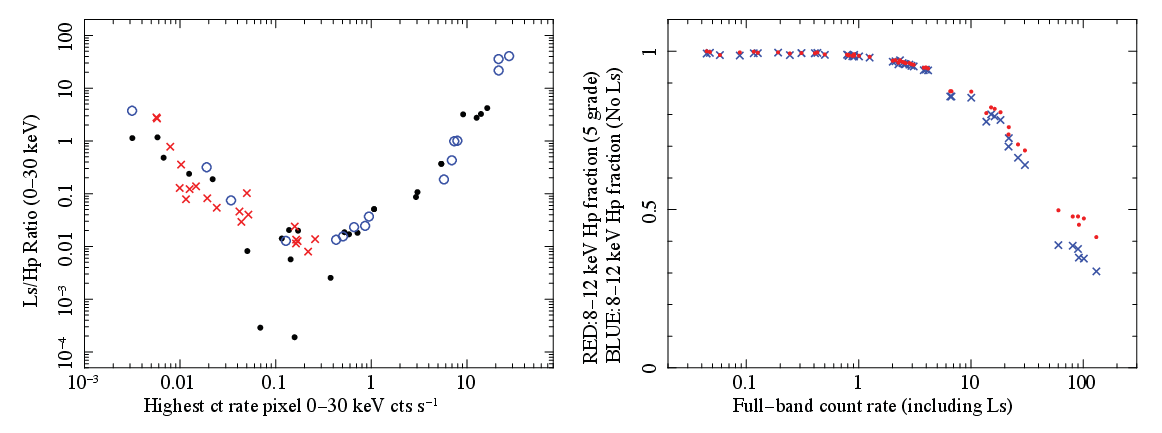 PI22000) PI22000) |
|||
| QUICK_DOUBLE==b0 | |||
| STATUS[2]==b0 | |||
| STATUS[3]==b0 | excl. antico events | ||
| STATUS[6]==b0 | excl. e- from pix 12 | ||
| RISE_TIME 127 |
|||
| PIXEL!=12 | excl. calibration pixel | ||
 8 TICK_SHIFT 7 8 TICK_SHIFT 7 |
|||
| The screening formulae connect these conditions with AND unless explicitly stated. | |||
| Strings in the Reference column come after “xaOBSID.” | |||
|
applied to antico events only. |
|||
| Screen | Reference | Condition | Comments |
| Time | .ehk | ANG_DIST1.5 |
pointing target |
| SAA_SXI==0 | outside SAA | ||
| T_SAA_SXI 277 |
Time after SAA passage | ||
| ELV 5 |
above the Earth rim | ||
| DYE_ELV 20 |
above the Bright Earth rim | ||
| Time | _gen.gti | inside GTIPOINT | excl. slew |
| inside GTIATT | excl. bad attitude | ||
| Time | .mkf | SXI_USR_CCD _OBS_MODE==1 _OBS_MODE==1 |
nominal instrument status |
| : appropriate CCD_IDs |
|||
| Time | sxi_tel.gti | inside GTITEL | excl. times of telemetry saturation |
| Time | _uf.evt | inside GTIEVENT | inc. GTIs of the event data |
| Event | _uf.evt | GRADE==0,2,3,4,6 | |
| STATUS[1]==b0 | |||
| PROC_STATUS[1,2]==b0
|
|||
| The screening formulae connect these conditions with AND unless explicitly stated. | |||
| Strings in the Reference column come after “xaOBSID.” | |||
|
PROC_STATUS reports errors found in the telemetry or during the processing. |
|||
| PROC_STATUS[1,2]==b0 means that the data in the row was good and processed correctly. | |||
We recommend that users create a separate directory for analysis, although they can analyze data under the event_cl directory. Hereafter, the analysis directory is called analysis/.
Users should copy or link the following files to analysis/.
000126000/auxil/xa000126000.ehk
000126000/resolve/event_cl/xa000126000rsl_p0px1000_cl.evt
000126000/resolve/event_uf/xa000126000rsl_px1000_exp.gti
000126000/xtend/event_cl/xa000126000xtd_p030000010_cl.evt
000126000/xtend/event_uf/xa000126000xtd_p030000010.bimg
See Section 4.3 for the file convention. If users run xapipeline, all these files are under the outdir directory.
The XRISM satellite attitude has been remarkably stable. Still, there can be some observations with relatively large attitude wobbling and/or some users may try to study small spatial structures and want to minimize blurring with the attitude wobbling. The wobbling should not be a problem in Xtend analysis as users can analyze data in the sky coordinates, but it could be problematic for Resolve, which requires analyses in the DET coordinates.
The ehk file includes the ANG_DIST value, which records the deviation
of the satellite pointing from the nominal position.
Users can plot the fluctuation with the FTOOLS command fplot.
fplot "xa000126000.ehk[EHK]" TIME ANG_DIST - /xw "" maxpts=500000
The tool reads 10 data points for one plot by default of the maxpts parameter,
which corresponds to an observation for 1.16 day.
If the observation has a duration longer than 1 day and a user wants to plot it in one panel,
increase the maxpts parameter to a larger value.
data points for one plot by default of the maxpts parameter,
which corresponds to an observation for 1.16 day.
If the observation has a duration longer than 1 day and a user wants to plot it in one panel,
increase the maxpts parameter to a larger value.
This plot includes off-source intervals such as the Earth occultation or SAA passages. For making a plot during GTIs, filter the ehk file with the GTI of the event data used for analysis and plot the output ehk file with fplot.
ftselect xa000126000.ehk xa000126000_clgtifilt.ehk
'gtifilter("xa000126000rsl_p0px1000_cl2.evt")'
Users perform further data screening or processing optimized for the targets and then produce images, light curves, and spectra. The procedures are more specific to the instruments, so we describe them separately in the next two chapters. The point and diffuse source analyses share most reduction procedures except for the arf response creation. We explicitly describe their differences when necessary.
Bright sources need extra care as the instrument's behaviors change at high count rates. The flux definition of bright sources is different between Resolve and Xtend instruments or the applied observation mode (See Chapter 8 in POG for Resolve and Section 6.3 in POG for Xtend) and there are multiple count rate thresholds that change the behaviors. We describe the issue briefly in the last section of each chapter, but the detailed treatment is beyond the scope of this document.